
| hcs consulting group. |
| we make complex systems simple |
click here to start remote help (help desk)
click here for known problems and fixes
editing of data:
you can hit the escape key to exit and save data you just entered. note that clicking on the "exit door", or pressing the esc key, or clicking on the "x" on the form will save your data. saving in rides is thus automatic, and you never have to press some special key to save data.
how to upgrade rides to the latest version
how to start a remote support session
setup bus nicknames - manage bus list
part time online jobs philippines work from home
What is the best and easiest online job
working with a rides data file (how to backup, or send a copy to another rides user)
setup additional text options for a invoice (custom text in a invoice)
part time jobs near me for 12th pass
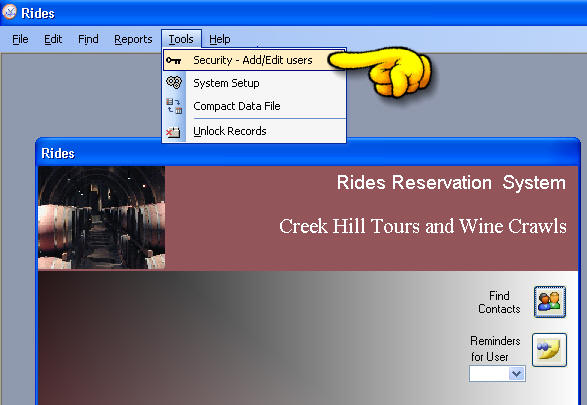
you can now add a new name to the rides system
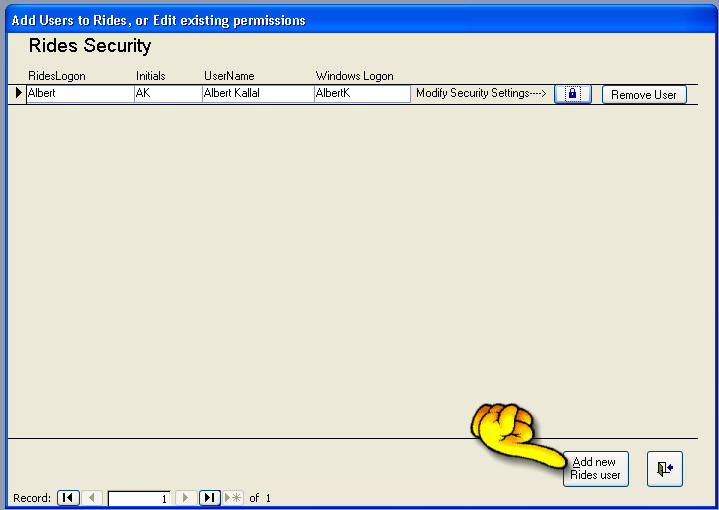
online jobs work from home part time near meIf you have a way with words freelance writing is a great option. You can write for websites blogs and online publications on a variety of topics. Sites like Upwork and Freelancer are great places to start looking for freelance writing gigs.where to find a part time job
click on the add new rides user as above, and then enter the rides name.
then enter the rides name.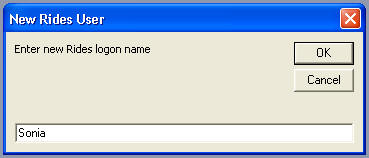
try to keep the name short, as this name will be used for each logon.
click ok to continue..
what are the best 9-5 jobsAs a premium executive assistant company we set the standard for remote professionals. We�ve been proudly certified as a Great Place to Work for 4 years in a row and our accolades include being named by Fortune Magazine as one of the �50 Best Small Workplaces� and Entrepreneur Magazine in their Entrepreneur 360 List as one of the �Best Entrepreneurial Companies in America� and by Color Magazine as a top Inclusive Workplace. Military Friendly named us as part of the Top 10 Military Spouse Friendly Employers and FlexJobs as a Top 100 Company to watch for. We are also accredited by Flexa as a truly flexible employer.part time jobs with flexible hours
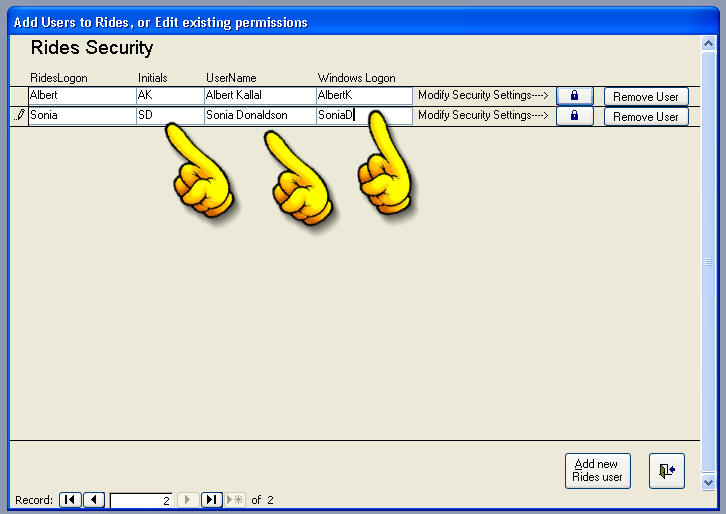
you will now see the new name you just added in the users list. fill out the users initials, username
the windows logon should fill out automatically. (rides users this to identify you when you launch rides).
you can hit the escape key to exit and save your data you just entered. note that clicking on the "exit door", or pressing the esc key, or clicking on the "x" on the form will save your data. saving in rides is thus automatic, and you never have to press some special save key.